
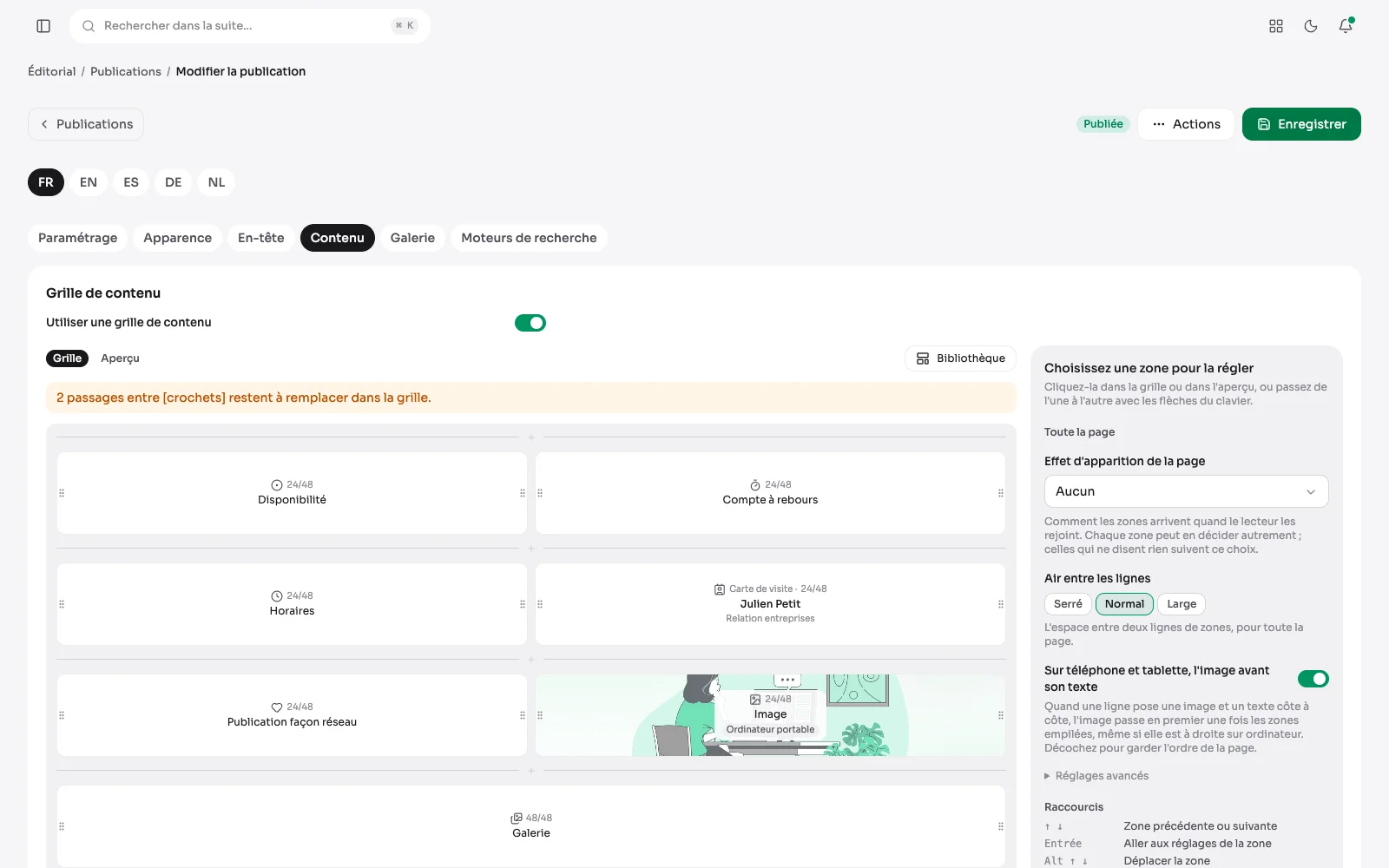
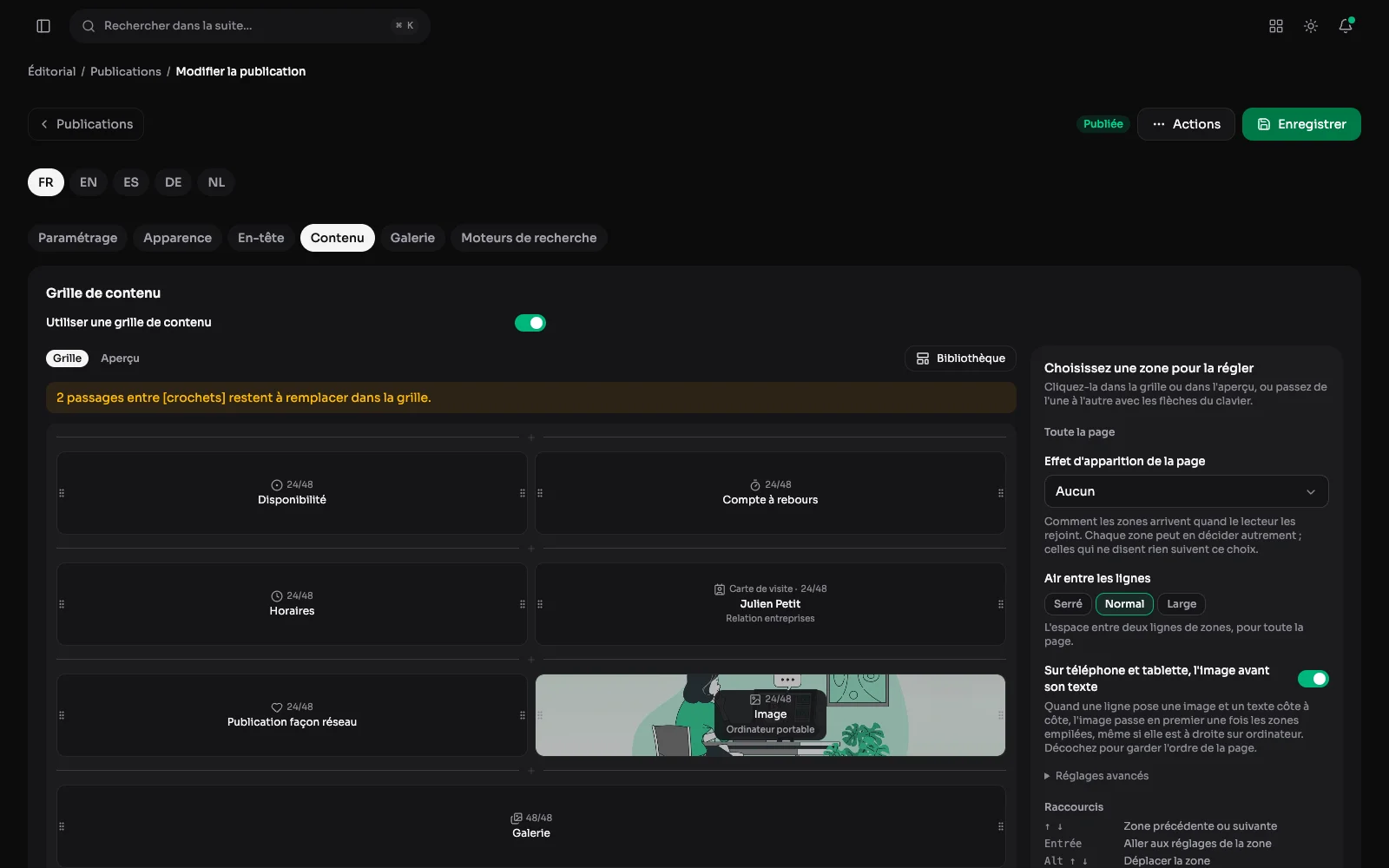
An Aurora page is not a block of text with pictures dropped into it. It is a 48-column grid you place zones on and drag the edges of. The page you are reading was built that way.
A page's grid, zone by zone
A post's Content tab: every zone of the grid, its size and what it holds, at a glance. Add, move and resize without writing code.
The grid and its palette of zones
Each zone takes its width per screen size, dragged with the mouse, with an offset to give it room, and can leave the column to cross the screen. Below, the palette groups the 45 zone types by use: text, image, publication, video, form, table of contents, stack; the eye beside each type opens its example. The layout is written once and serves every language of the site.
The document outline: what is left to write
Above the grid, the outline of an audit template lists its fifteen sections and counts, for each one, the bracketed passages still to replace. Every tile shows its heading and its settings, such as “Raised” or “Phone”.
Inserting a ready-made section
In the Library, the “Sections” tab offers ten ready-made arrangements, drawn to the scale of their zones: card and phone, four cards in a square, three accounts compared, keep and avoid. The sections you saved wait in the “My sections” tab.
An example for every zone
The Library's “Zones” tab shows each of the 45 types at work, drawn by the server in the site's theme, with its own images. “Insert this example” places it in the page, its texts in brackets, ready to replace.
And for every text block
The “Blocks” tab does the same for the editor's eighteen blocks, from the paragraph to the icon list. Opened from a text, with the “Examples” button or a block's menu, the example lands in that text, right after the cursor.
The preview: the real page, at phone width
The Preview tab swaps the grid for the real page, in the site's theme, at the width of a computer, a tablet or a phone. Clicking a zone in the preview outlines it and opens its settings in the panel beside it. On a phone, zones stack one under the other, in the order they were placed.
One zone open: its place and its look
Clicking a zone of the grid opens its settings in the panel beside it, with the grid still in view: its type, its width per screen size, its offset, a new line, its background, a forced light or dark theme, its accent colour and the way it appears. What is set here applies to that zone alone. A toolbar sits on the zone itself: move up, move down, duplicate, copy, save it for reuse, delete it, with a way to undo the deletion.
Four tabs: Content, Layout, Style, Visibility
A zone's settings are sorted into four tabs. Layout says where it sits: its width on the 48 columns, its offset, its vertical alignment, the space above it, whether it stays put while scrolling or spans the full width of the screen.
A zone's style
The Style tab dresses the zone: a background (card, raised, tinted, accent or custom), a light or dark theme forced on it, the colour of hovers and markers, and how it appears.
Who sees the zone, and when
The Visibility tab schedules a zone between two dates, keeps it for signed-in members, hides it on a phone or on a computer, and gives it an anchor so that a link can lead straight to it.
A wide panel for writing
For a text, the panel widens in one click and the editor takes the room it needs; the chosen width is remembered for next time. The grid stays beside it, the current zone highlighted.
HTML written in a real code editor
When no block does what is needed, the HTML block lets the layout be written by hand. It is written in a code editor: colours, line numbers, indenting with the Tab key, tags closed on their own. Here, the card of the next session, in three panels.
The code on the left, the page on the right
In full screen, the block shows as the site will draw it, updated while typing: the same cleaning, the same theme. It can be seen on a computer, a tablet or a phone, in light or dark mode, without saving or opening the page.
A code snippet coloured in its language
The Code zone shows a snippet on the page, as it is, as an animated terminal or as a before / after. It is written with the same editor, coloured in the language picked among eleven, and each language of the site keeps its own comments.
On a phone, a sheet that slides up
On a small screen, the same panel becomes a sheet that slides up over the grid. Pull it by its handle to open it fully; the back gesture closes it.
One list, thirteen presentations
The List zone holds entries (a title, a text, an image, a link) and shows them as numbered steps, key figures, FAQ, testimonials, logos, timeline, offer cards, team, picture story, editorial list, horizontal process, icon cards or picture showcase. Changing the presentation loses nothing that was written.
The 45 zone types and what a zone can do
- Text and pictures: rich text (headings, lists, quotes, callouts, tables, coloured headings), an image on its own or in a laptop, phone or browser frame, a gallery, a before / after to slide.
- Media, code and charts: video, a video wall, audio with its chapters, a document to download, highlighted code with line numbers, an embed from an outside service, a bar, line, donut or growth chart.
- Publications and navigation: a publication picked by hand, or an automatic list picked by rule that keeps itself up to date; a free list, the terms of a taxonomy, a table of contents built from the headings, a site search.
- To structure the page: tabs, a button, a separator (line, space, wave, diagonal or bevel), a header in the middle of the page, a shared block (written once, placed on several pages, corrected everywhere at once) and a stack, a zone holding others for a tall picture beside two stacked zones.
- What the visitor fills in: a site form, a poll, appointment booking on time slots, a quote estimator, the page's comments, the newsletter sign-up and its GDPR notice.
- Practical information: opening hours and upcoming closures, an availability, a countdown, a business card that saves to contacts, an address with directions, a menu with its prices, a QR code.
- Networks and integrations: a social-style post, the Instagram feed, Google reviews, GitHub activity, the site's latest activity, a step-by-step travel map, an editorial calendar, a presentation.
- A zone can become a band that scrolls slower than the page, or stay in place while its neighbour scrolls.
- A background (card, tinted, accent colour, or a chosen colour, gradient or image), its own contrast, its own accent colour and hover colour, over the page's.
- An entrance on scroll: fade, slide from below or a side, zoom or blur.
- Show only between two dates, or only to signed-in members, and an anchor so a link can lead straight to it.