
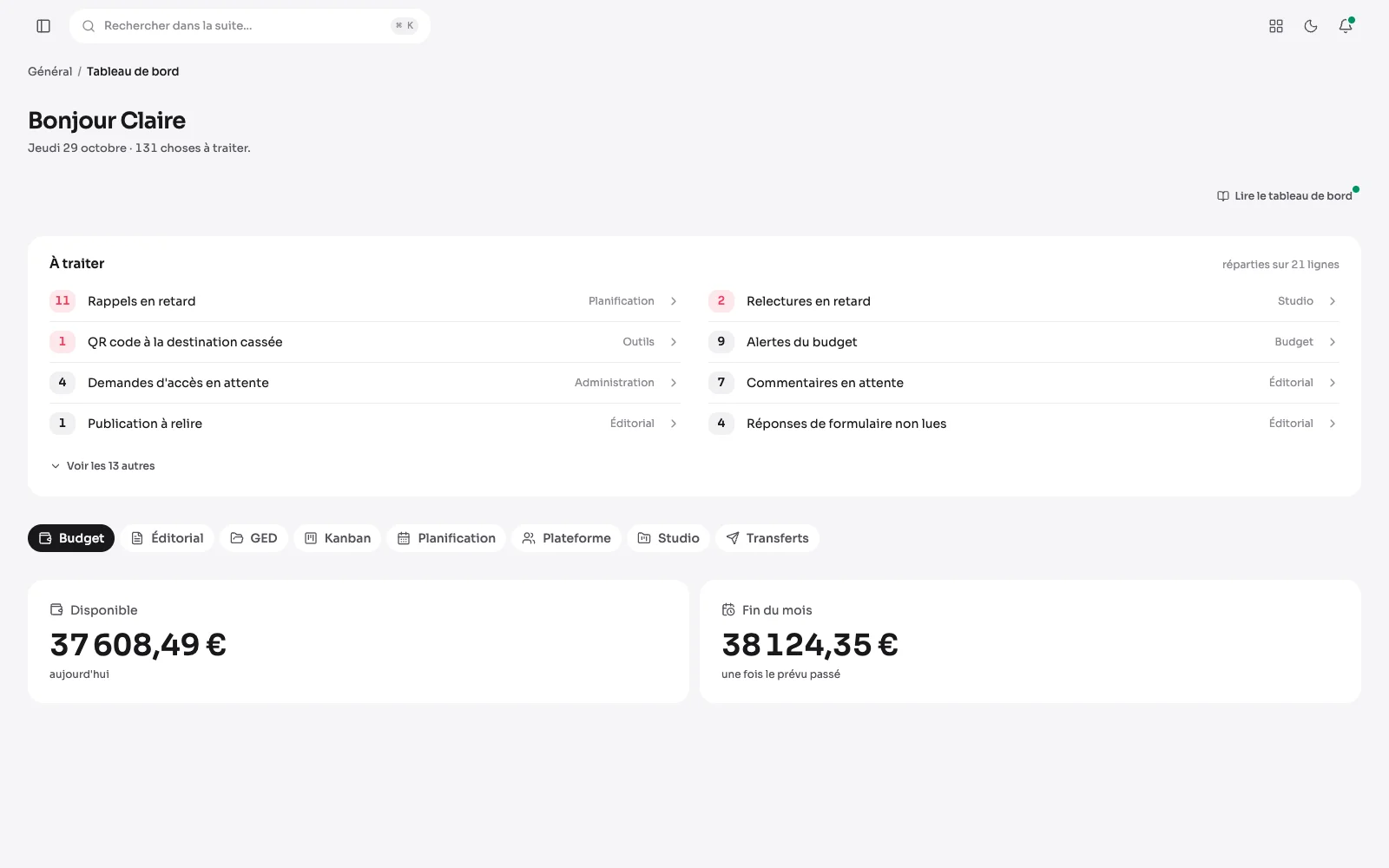
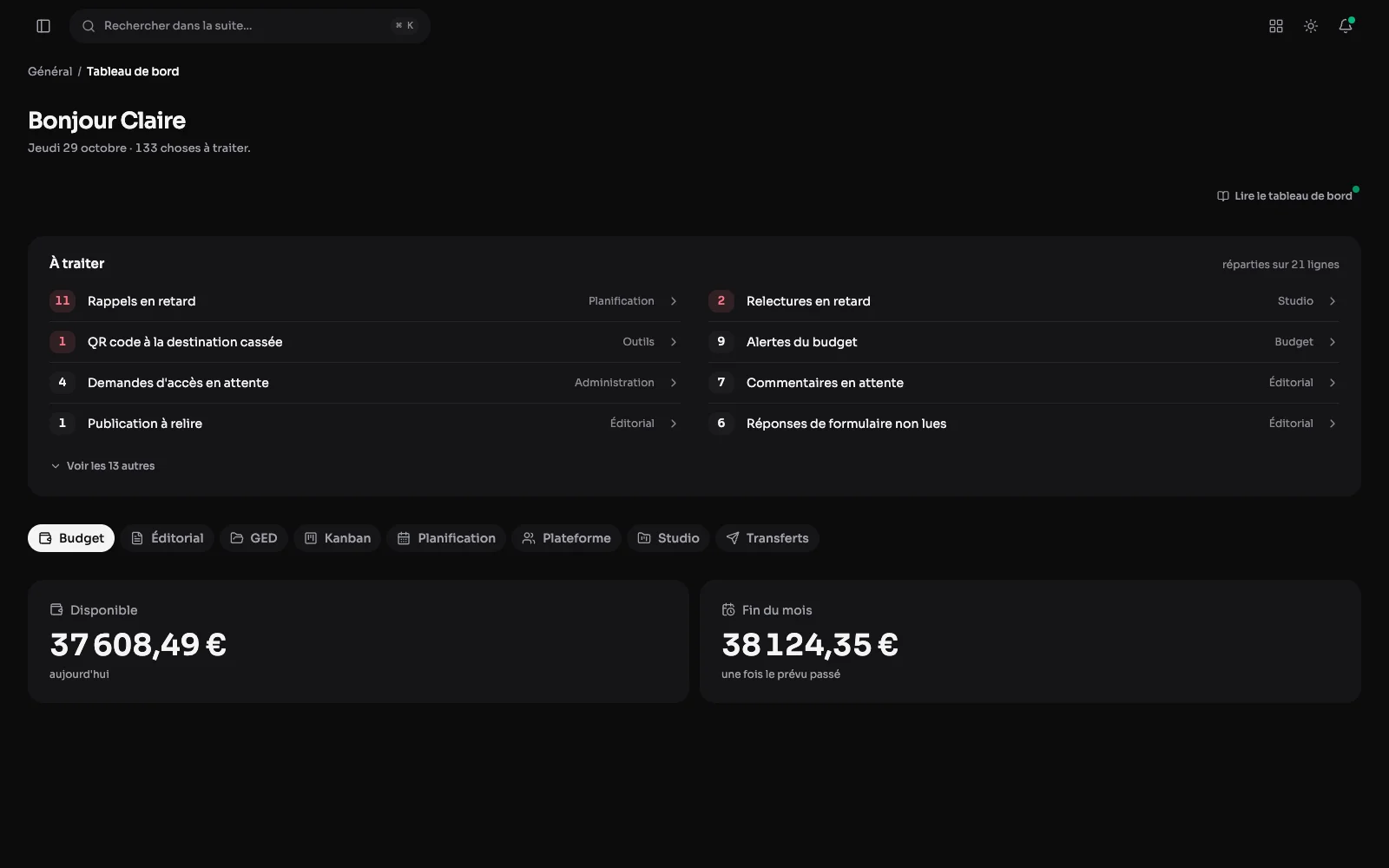
Opening the suite, you first see where the site stands: what is published, what is waiting, what moved recently.
What awaits an answer
The dashboard greets the person with today's date and counts what awaits them. At the top, what needs handling, module by module: late reminders and reviews, late cards, budget alerts, access requests, comments, contracts, broken QR codes. Then each module's figures.
One panel per active module
The dashboard gives each active module its own panel, with its own figures. Here the media library, as do editorial and the calendar: each part of the site shows where it stands, in one place.
“How it works”: a guide on every screen
Every screen has its “How it works” guide. The one on the media library categories screen, opened in its window, explains in five steps the difference between category, tag and folder. It opens with one click, at the top right of the screen.
Notifications: what waits for a decision
The bell flags what needs action: a publication to review, a comment to moderate, an appointment coming up. Each line leads to the screen concerned, and everything is marked as read in one go.
The Studio panel: the spaces at a glance
The Studio panel counts what needs attention in the client spaces: missed releases, overdue reviews, contents to rework or with the client, what goes out within seven days, contracts to countersign or with the client. Then it lists the spaces to deal with.
The Platform panel: who has access
The number of accounts and how they split by role: users, administrators and developers. You see at a glance who can do what in the suite.
What else it shows
- The number of publications and how they split across statuses.
- What was changed last, and by whom.
- A global search across publications, the media library, calendars, notes, client spaces and contracts.