
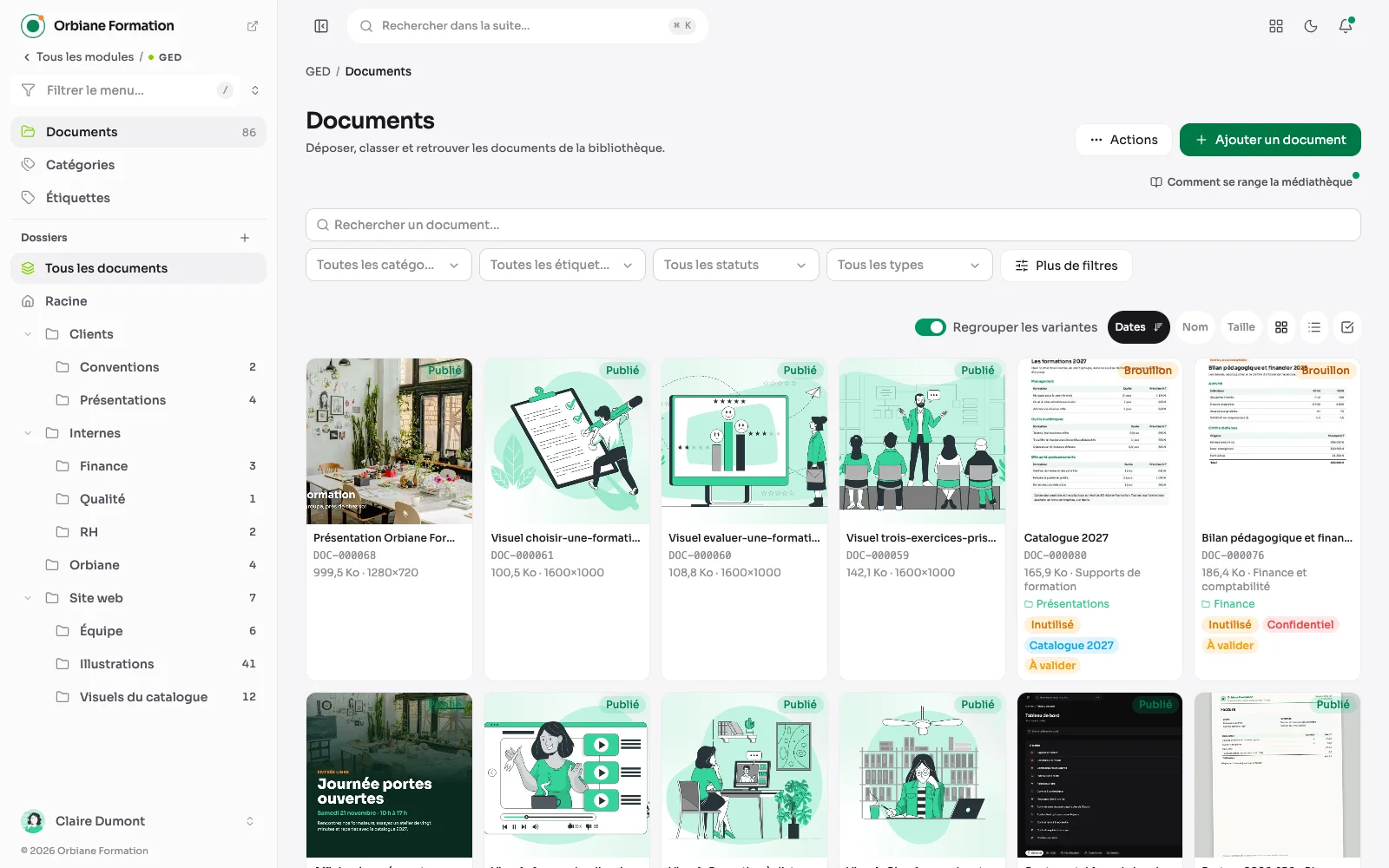
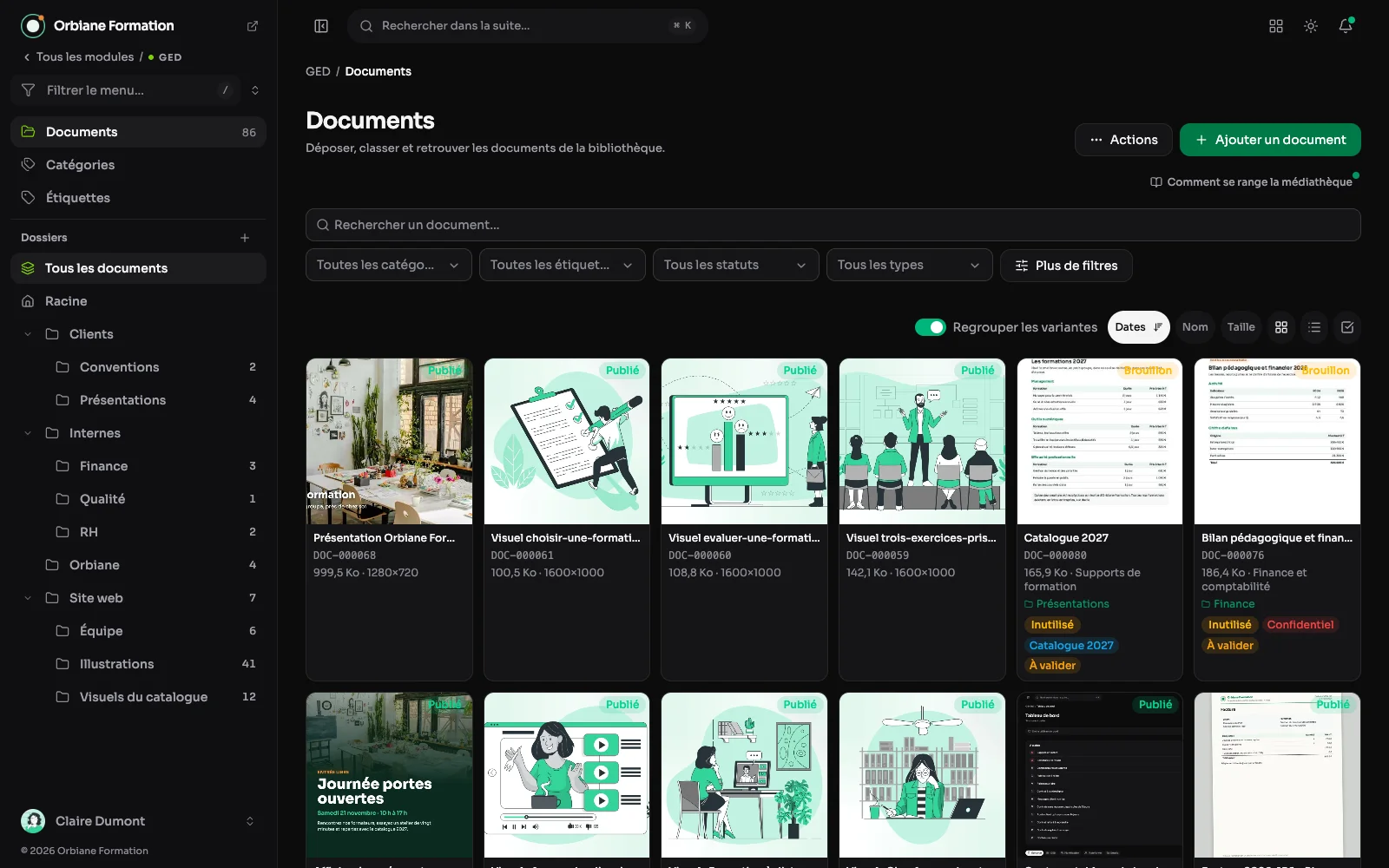
A site's pictures usually end up in a folder nobody tidies. Here they live in a library: filed, tagged, described, and findable.
The media library as a grid
Every document as a thumbnail, filed in folders, with categories, tags and status. Variants of one picture are grouped together.
A document opened
A click on a card opens the document in a panel, with the library still in view: its preview, its dimensions, where it is filed and its dates, and the tools to crop it, derive a colour variant, a QR code or download it. The keyboard arrows move to the next document.
The media library on a phone
On a phone, the document tapped slides up as a sheet. Fully open, it says everything the computer shows, down to the spaces and posts that use it.
A colour variant, made on the spot
A visual and its variants are kept together, as a family. A colour variant is created from the library, pixel by pixel, keeping the lightness: you choose the new colour, what sets it apart and the colours to spare.
Declining an image for the networks
The Declensions button, under each image, makes a copy filed with the original: a network format (Instagram square or portrait, Story, LinkedIn, Facebook, Pinterest, share preview) whose frame keeps the right proportions, a conversion to WebP, JPEG, PNG or AVIF, or a watermark. The original image never changes.
The colours of an image
See its colours gives the six dominant colours of an image, with the share each one takes and its contrast on white and on black. One click copies a colour's code, to use it again in a theme or a visual.
Categories: one per kind of document
Documents are filed in folders, and each one gets a category, just one, that says what kind of document it is. The categories screen lists them, each with its identifier.
Tags, which cut across categories
A document has one category, but as many tags as needed. One tag can therefore gather documents from different categories, so they are found together.
A document's record: what goes with it
The title, a description, the alternative text read by screen readers and search engines, the caption shown under the image, the category, the tags, the folder and the status. The file can be replaced without changing the record: the pages that use it follow.
Picking an image without leaving the screen
Wherever a field expects an image, the same picker opens: the media library with its search, categories and folders, or free photos, downloaded, filed and credited on their own.
Adding a document
A file chosen, then its title, description, alt text, caption, category, tags, folder and status, in the same window. A document can stay in draft while it is being described.
Several images at once
A series of photos is added in one go: drop them into the window, and each one becomes a document. The title starts from the file name and is corrected row by row; the category, folder and status are chosen once for the whole batch. A file named as another one's version ("poster-yellow" next to "poster") is offered as its alternate, and a refused file is flagged on its row, without stopping the others.
The list view
The same library as a table: title, category, status, file, size and preview, with each row's menu. Cards to browse images, the list to find one document; the choice is remembered.
A document's page
Each document has its own page, at an address that does not change: its status, category, folder, dimensions, dates, the file to crop or download, and its family of variants with what uses each one.
What else the library holds
- Successive versions of the same document, and the list of pages using it.
- Several sizes generated automatically and served as WebP, unasked.
- An “Unused” badge on whatever nothing displays any more, to know what can be deleted without breaking anything.
- Deleting a document says first where it is used: a picture does not vanish from a page without warning.
- A photo's camera settings (body, lens, aperture, shutter speed, ISO, focal length), read on upload.
- A QR code per document, leading to its public page.
- Two storages, the server's disk or a remote storage such as R2, with what each one weighs, and the whole library moved from one to the other in a single step.