
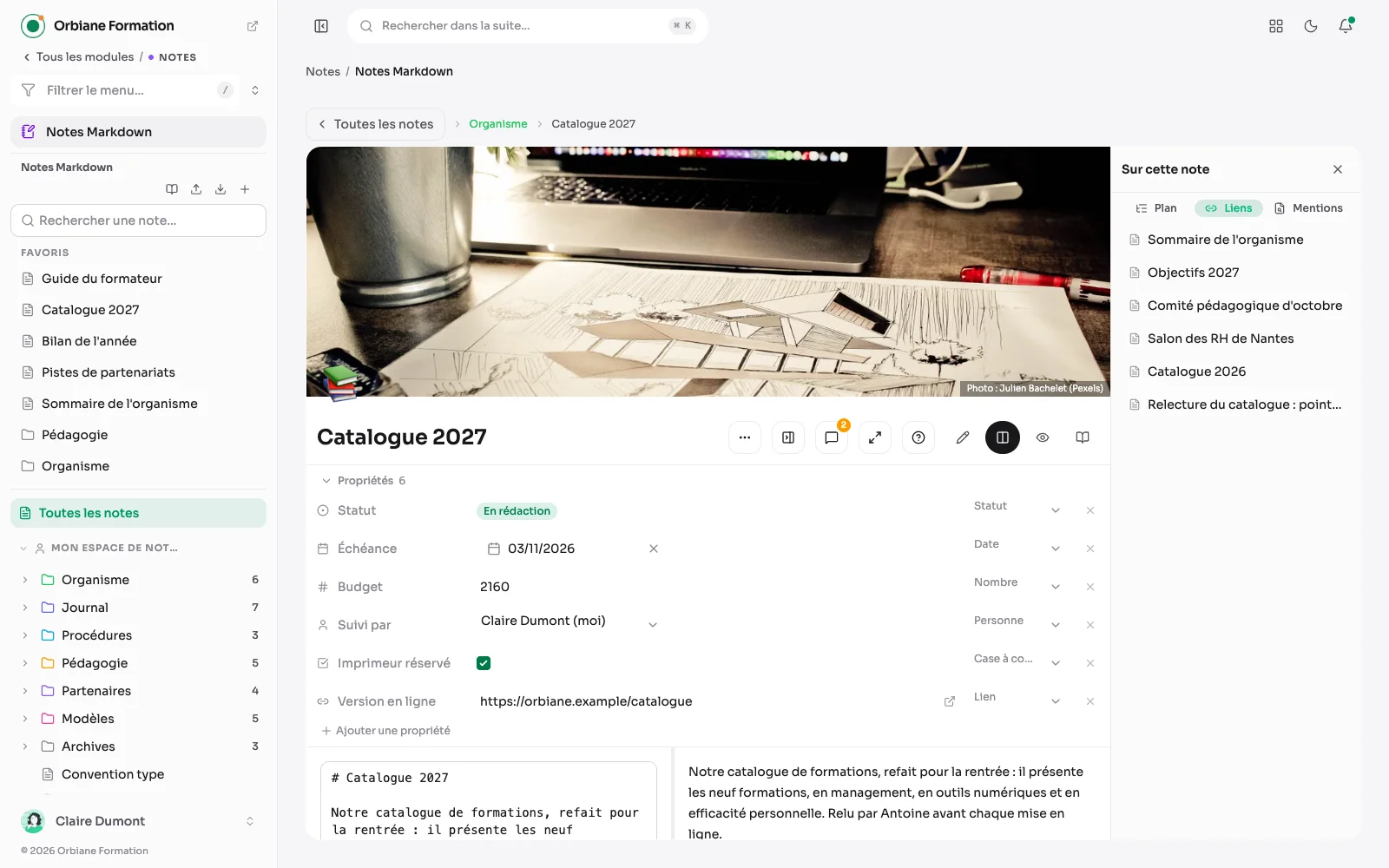
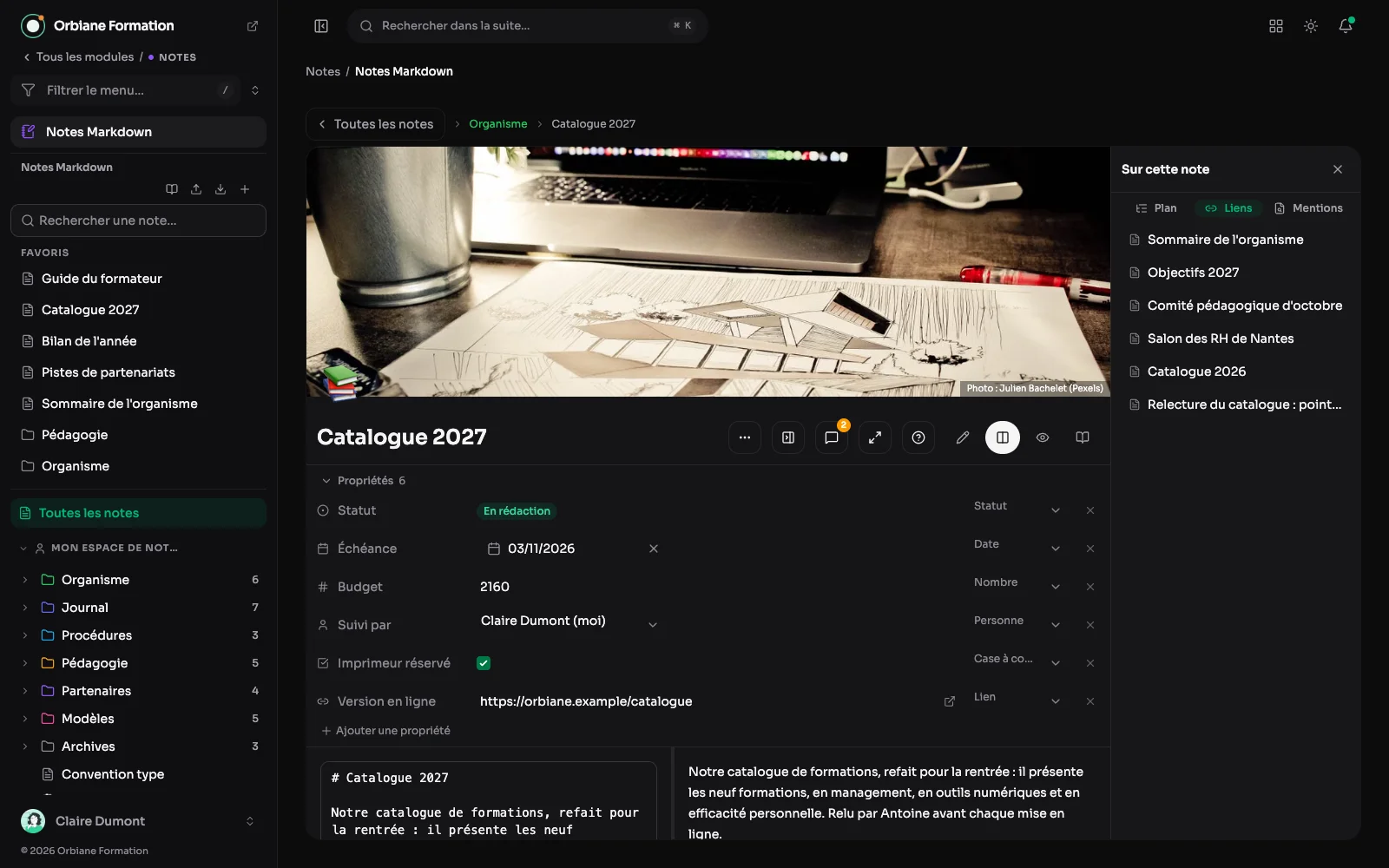
A Markdown notes module, with the rendering beside the source. Notes link to each other, and the graph shows what points where.
A note, its properties and its rendering
A note with its cover, its properties (status, due date, budget, owner) and its Markdown text, the notebook tree on the left and the outline on the right.
Writing and filing
The library: each note and how it starts
The flat library shows the start of each note, with its folder and its tags, and a search to find it again. At the top, “+ New note”, and today's note: one click opens the note dated today, filed on its own in a “Journal” folder. Notes are filed in folders and subfolders, arranged by drag and drop like in a file explorer, and a breadcrumb tells where you are.
The card view: many short notes
The same library as a dense grid, without excerpts, for a folder holding many short notes. You switch from the flat view to cards or to the list depending on what you are after.
The list view: finding one note
Title, folder, tags and last change, one note per line. This is the view for finding one note in the library rather than browsing it.
The editor: source, rendering and outline
The “Catalogue 2027” note being written, with its rendering beside it. The “About this note” panel shows its outline, headings indented by level and each a click away, with the word count and reading time. This is the module I use to follow client projects, and it is encrypted at rest.
Templates: starting from a ready note
A note can be duplicated, or made into a template. Here the “Add” window starts from the “Fiche programme” (programme sheet) template: the new note takes its text, and today's date replaces the placeholder.
History: going back to a version
Each note keeps its past versions, dated. You see what changed since each one, removed lines in red and added lines in green, and you go back to any of them without losing anything.
The notes settings
The maximum size of pasted images, scaled down in the browser before upload, and their WebP quality. Then the number of versions kept per note, and the minimum gap between two versions.
Linking and reading
The graph: what points where
Notes link to each other with double brackets. In the graph, a note is a dot, a double bracket is a line between two dots. Each dot takes the colour of its folder or its space, and a selector shows one space at a time. Each note also lists the notes pointing at it, and its unlinked mentions: notes that talk about it without linking to it.
Dressing a note: a header image and six looks
A note's header image is searched among free Pexels photos, and its framing can be adjusted. Six looks apply to the note: plain, sepia, slate, paper, night, mint.
Reading mode: the note, without the suite around it
Reading mode removes the suite around the note. What remains is the tree by space on the left, the note in the middle, and the next one an arrow away. On a wide screen, the note's outline stands on the right and follows the reading; the bar gives the reading time and exports the note as Markdown or PDF.
Sharing, publishing, exporting
Spaces: your own, then the team's
The panel files notes by space: your own notebook first, private, then the shared spaces. Here, a space open to the whole team, marked as published.
Creating a space: who gets in, with which role
A space is created with its name and who gets in: chosen people, or the whole suite. Everyone reads, writes or manages according to their role, and you choose the role of those who get in without being added.
A space's settings: access and the web
Access, members and their role are set here, as is publication on the web. Once published, the space can be read without an account, at its own address, and stays out of search engines unless asked.
A published space: read without an account
A published space can be read without an account, at its own address. The reader finds its tree on the left and the note in the middle.
A shared note: one link, no account
A share link shows a single note to somebody without an account. Its page gives it as it is made: the banner, the tags, the date it last changed, the reading time and, on a wide screen, the outline beside the text, with the linked notes listed on the left.
The share link: read, write, or write together
A link lets someone read the note, or rewrite it if you allow it. Tick “Live co-editing”, still in beta, and whoever has the address writes with you, at the same time. The list shows which links write and which are live.
Writing together: faces and cursors
Everyone on the note has a badge in the header and a named cursor in the text. Colleagues and guests write letter by letter, the title included, and the note saves itself.
On the guest's side: straight into the editor
With no account, the guest lands straight in the editor: writing only, split or preview, as in the suite. They see who else is writing, and two buttons widen the page to the whole window or switch it between light and dark.
Export: your notes belong to you
Everything exports as a zip of Markdown files: all your notes, a space or a single folder, from the library's button or a folder's menu. One folder per space, one file per note, tags at the top: Obsidian or any editor opens it as is. Imported back into Aurora, a full export gives the notebook back as it was.
A cheat sheet within reach
The “?” button lists everything a note can hold: each syntax, its keyboard shortcut, and “Insert”, which drops it at the cursor. It is on shared notes too.
An icon and properties
As in Notion, a note carries an emoji above its title and properties right below: status, date, person, number, checkbox, link. They leave with the Markdown export as a YAML header, as in Obsidian.
Rich rendering
Automatic table of contents, highlights and colours, formulas, diagrams, foldable callouts, footnotes, even a section of another note included as it is: everything is written in Markdown and reads formatted.
Every task in one place
Every checkbox of every note, gathered in one view: what is left, what is overdue, note by note. A due date is written 📅 in the task, and you tick it from the list.
The journal as a calendar
Today's note in one click, and the month in view: a dot on every day that has its note. A click on another day opens its note, or writes it.
A folder as a table
The library also shows as a table: one column per note property, sorted with a click on a heading and filtered on any cell, like a Notion database.
Comments on a passage
Select a few words and comment: the passage is underlined in the note and the discussion opens beside it, with its replies and resolved threads. An @mention notifies the person named, if they can read the note.
Present a note
A note becomes a full-screen presentation: one slide per heading, or per separator, with its tables, formulas and diagrams. It exports to Word too.
The client comments too
On a share link open for writing, the client sees the commented passages and replies under their own name, with no account. Their comments arrive in the suite, and the note's author is notified.
Search the whole notebook
Cmd+Shift+S opens the search: titles, text, headings, tags, properties and comments are searched, regardless of accents. The passages found are highlighted, and chips narrow the results by tag or folder.
The word, where it was written
The side panel's search keeps the folder tree and shows, under each note found by its text, the passage where the word appears.
Cmd+P searches the content too
The quick search offers the titles first, then the notes whose text holds the word, with the passage. A last line opens the full search.
Find and replace in a note
Cmd+F searches the open note, Cmd+Option+F replaces. Every occurrence is highlighted in the editor, Enter moves to the next one, and “Aa” matches accents and case.
Replace across several notes
From the search screen, “Replace” first counts the occurrences and the notes concerned, then replaces once confirmed. Locked or read-only notes are left untouched, and every note keeps its previous version in its history.
Also
- Favourites of your own, pinned from the tree, the editor or the reader.
- Free ordering in the tree: a note can sit before a folder, and stays there.
- Two people on the same note: the second save can no longer silently overwrite the first.
- Printing, or exporting as PDF, always on a light background.