
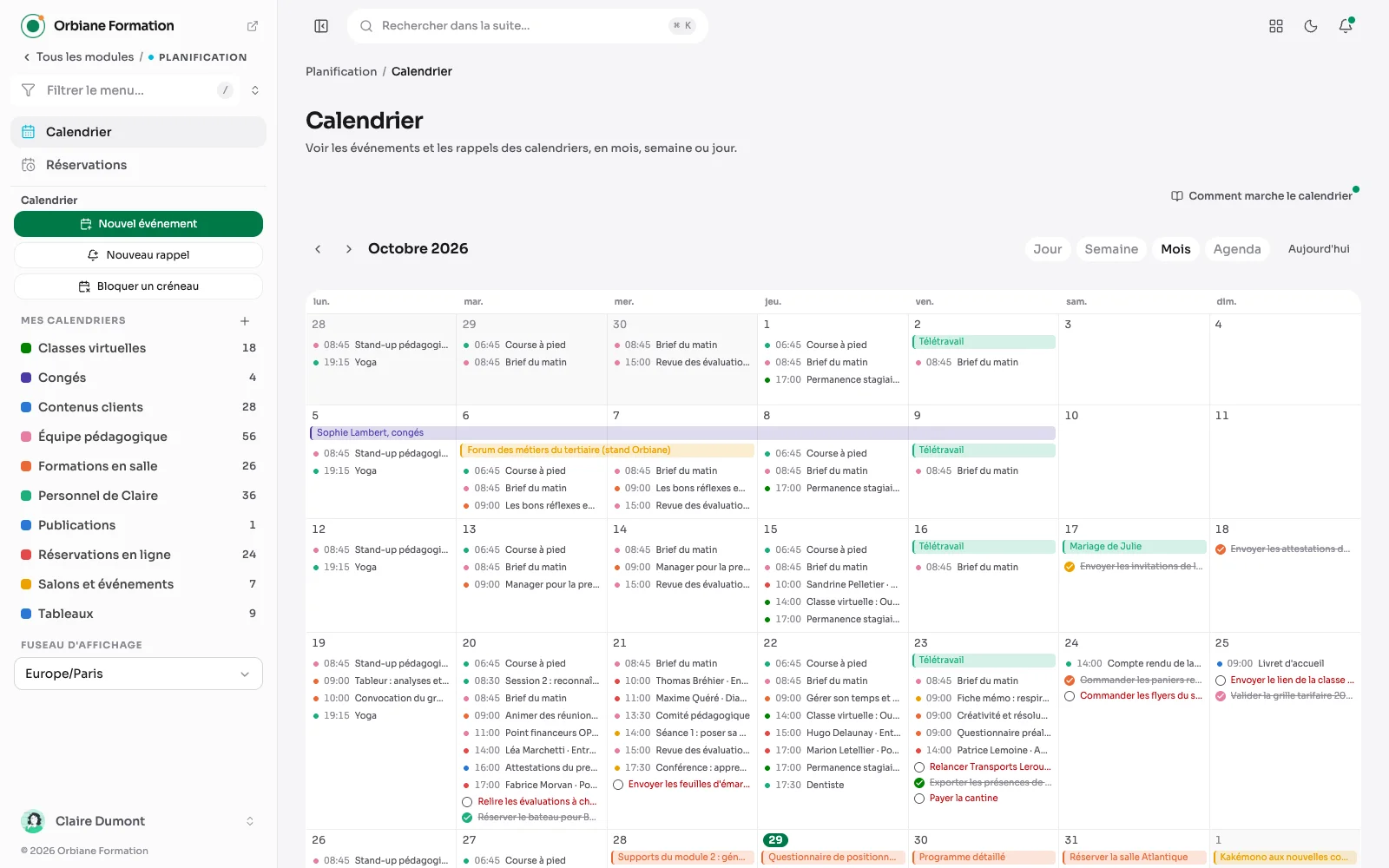
A full scheduling module, for projects that need one: appointments, availability, deadlines.
The month, at a glance
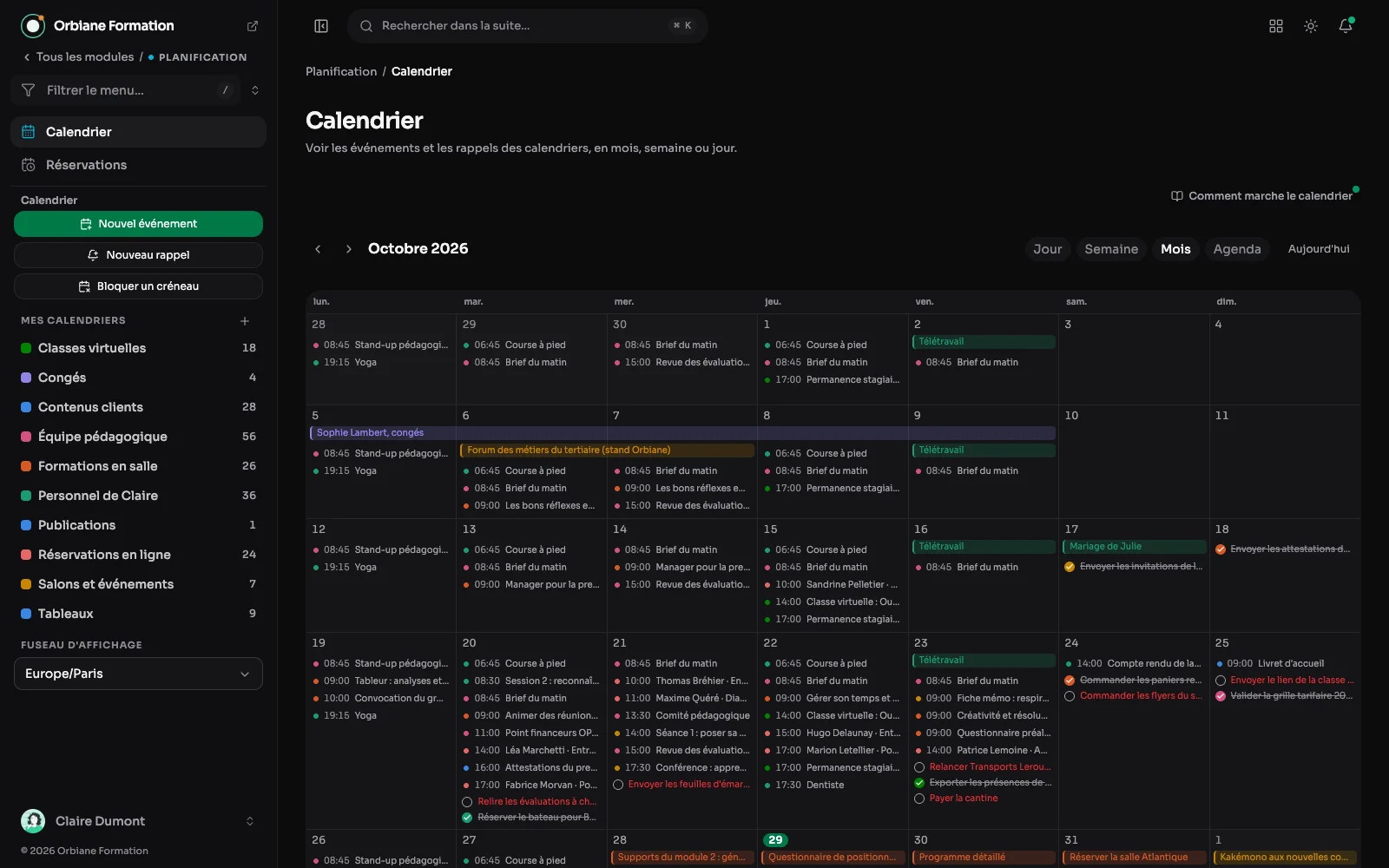
Every calendar in the same view, each in its colour, with the buttons to create an event, a reminder or block a slot.
The week: appointments, reminders and all-day events
Several calendars, one per subject, each with its colour: appointments, deadlines and scheduled publications live side by side without mixing, and show or hide with a click. The week view draws reminders, all-day events and overlapping appointments side by side. There are also day, month and agenda views.
An event: its guests and their answers
An open event shows its date, its state (to confirm, confirmed, cancelled) and each guest's answer: accepted, declined, maybe or no answer. A repeating event states its rule once, and moving it asks whether it is this one, the following ones or all of them.
A Google invitation, in full
An event from a linked Google calendar shows what Google shows: its start and end, the Meet with a button to join it, the guests with their answers, the organiser first, and the attachments. Your answer, yes, maybe or no, goes to Google Calendar, which tells the organiser.
An event edited beside the month
An event opened shows in a panel to the right of the month; "Edit" unfolds the form there: title, calendar, times, place, status and colour, with the month still in view.
The calendar on a phone
On a phone, the month shrinks to dots and the chosen day is listed below it. The event tapped slides up as a sheet, ready to be edited.
Sharing a calendar by link
A read-only link, named so you know who it went to, can cover several calendars, expire on a date and be revoked. As a web page it opens in a browser without an account; as an iCal subscription, the calendar shows in Apple Calendar, Google Calendar or Outlook.
The day
A single day, hour by hour: what overlaps sits side by side, reminders and all-day events above.
The agenda as a list
The days one after another, each event with its time and colour, reminders ticked or not: the quickest view to read.
What the person with the link sees
The share link opens the calendar read-only, without an account, in the calendar's own times, until the expiry date shown at the top.
Creating a calendar
A name, a colour, a visibility, private or shared with everyone who has access to the calendar, a time zone that cuts its all-day events, and a description.
Synced with Google Calendar
A calendar links to a Google calendar, and the two stay identical both ways: an appointment made on the phone arrives within a minute, an event created here goes to Google. A series stays a series, an occurrence deleted or moved is mirrored on both sides, and guests and reminders stay on their own side. The calendar's window says which calendar it is linked to, when it last synced, or what Google answered.
A key, then one share per calendar
No Google sign-in to hand over: the site has its own service account, whose key stays encrypted. Each calendar is shared with its address, with the right to change events, and removing that share stops the sync. The configuration tab walks through the whole set-up, from the Google console to the first linked calendar. Dates from the other modules, such as scheduled posts, can go to Google too.
An appointment booked online, with its video call
A booking lands in the “Online bookings” calendar with the person's details, their answers, and the video call's link where the event says it takes place, clickable. The Meet call appears there on confirmation and goes on cancellation. The “Block a slot” button adds an “Unavailable” event the booking pages respect. The appointments themselves are followed in bookings.
What else the calendar does
- A reminder is not an event: it has a due date, gets ticked when it is done, and warns you by notification or by email.
- Share with someone read-only, or let them write.
- Each calendar carries its own time zone, and an event can last the whole day.
- The other modules' dates arrive on their own: scheduling an article for publication makes it appear in a calendar created for the occasion, with a link back to the screen it came from.
- Like the rest, the module switches off when a site has no use for it.